Recording expenses — Incoming Invoice
To record an incoming invoice, upload the PDF using Create from File. AI recognizes the invoice details, goods and services, amounts, and taxes. In addition to filling in the document, it checks the data for consistency and highlights anything that needs attention.
The program uses the recognition result to create an incoming invoice and attaches the original PDF. You then review the result, complete any missing details, and make sure the document is posted.
If recognition is unavailable or impractical, use manual or quick entry.
AI confidence is an assessment of the recognition result, not confirmation that the accounting treatment is correct. Compare the created invoice with the original and check the selected accounting settings.
1. Creating an incoming invoice from a PDF
1.1. Start the upload
Open Purchases → Incoming Invoice and click Create from File.
In the Set Parameters window, check the values that will be assigned to the documents being created. Project is used for invoice lines. Manager and Department are available if accounting by budget items and financial responsibility centers is enabled in the program.
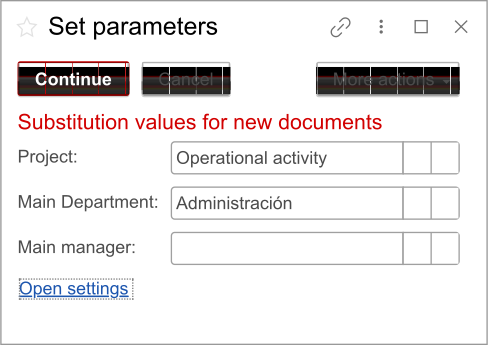
Click Continue.
1.2. Select the files
Drag one or more PDF files into the window that opens. Alternatively, click Select from Disk to open the standard file selection dialog. Once you have added the files, click OK.
Recognition runs in the background without interrupting your work in the program. While one group of files is being processed, you can upload the next group: the processes will run in parallel.
1.3. Open the result
Once an incoming invoice has been created, it appears in the document list. The program also displays a pop-up message in the lower-right corner and adds a notification to the notification area. Click the notification to open the invoice.
The original PDF and the file containing the recognition result are attached to the document automatically. You can open the original on the Attachments tab; there is no need to upload it again.
2. Reviewing the result
2.1. What the AI tab shows
If a recognition result is available for the invoice, its form displays the AI tab. This tab shows the overall recognition confidence, the recommended level of review, warnings and explanations, and the result of matching goods and services to existing records.
Overall confidence is assessed on a scale from 0 to 100. It reflects not only the quality and readability of the PDF, but also the completeness of the details, whether values are unambiguous, and whether amounts and taxes reconcile. A high score does not mean that the document needs no review.
| Assessment result | What it means for the user |
|---|---|
| Automatic approval | Confidence is high, the supplier and invoice number have been identified, amounts and taxes reconcile, and there are no serious warnings. The program may post the invoice automatically. Read the explanations and check the accounting settings |
| Quick review | The main details are consistent, but there are minor ambiguities. Compare the highlighted details with the original |
| Manual review | There are significant uncertainties: for example, some details are unreadable, amounts do not reconcile, or reliable tax information is missing. Investigate the warnings and correct the document before posting |
Automatic approval does not mean that there are no messages. AI may include a note, a tip, or important information even when confidence is high. Check the posting status using the document indicators, not just the AI assessment.
2.2. Warnings and recommendations
Messages help you understand where an ambiguity has arisen and which data needs checking. They may relate to a specific field, a goods or service line, a tax, or the invoice as a whole.
Messages differ in meaning and importance as follows:
| Message type | How to interpret it |
|---|---|
| Note | Explains the recognition result; it does not indicate an error on its own |
| Tip | Suggests an additional check or action |
| Important information | Highlights a circumstance to consider during review |
| Warning about a possible error | Indicates a likely problem with recognition or the consistency of accounting data |
| Serious warning | Indicates a significant problem that requires manual review |
The following table gives examples of situations AI may detect. These are not the program's exact messages: the wording depends on the particular invoice.
| Situation | What to check |
|---|---|
| A field is unreadable or several possible invoice numbers have been found | Find the correct number, date, or other detail in the original and enter it manually. Do not use the order number instead of the invoice number |
| The invoice total does not reconcile with line amounts and taxes | Compare the lines, discounts, delivery and other additional charges, VAT or IGIC, and IRPF withholding. Do not change the printed total just to make it match a calculation |
| VAT or IGIC information is missing or conflicts with other amounts | Check the original tax breakdown, including rates, taxable bases, and amounts. If no tax is charged, check the reason stated on the invoice |
| Tax cannot be reliably allocated to individual lines | Compare the lines with the tax breakdown. Do not assign the same rate to every line simply because it appears in the totals |
| The accounting group could not be determined with sufficient confidence | Recognition may select Other Services (Otros servicios). Check whether this group matches the nature of the purchase and change it if necessary |
| The postal code does not match the stated Spanish province | Check the supplier's address. When this conflict occurs, the recognition result keeps the province printed on the invoice and adds a warning |
2.3. Compare the invoice with the original
Open the attached PDF and compare it with the created document. Warnings help locate potential problems, but they do not replace checking the main details.
| What to check | What to look for |
|---|---|
| Your company | The invoice belongs to the correct company; the customer details in the PDF match your company's details |
| Supplier | Name, tax ID, country, and address; the correct supplier record has been selected |
| Invoice details | Supplier invoice number, date, and currency. Also check the accounting date in the program |
| Goods and services | Name, selected record, quantity, and unit of measurement |
| Amounts | Unit price excluding tax, discounts, line amounts, additional charges, and invoice total |
| Taxes | VAT or IGIC, IRPF withholding, tax regime, and territory of consumption of goods and services |
| Accounting settings | Accounting group, project, manager, and department |
Check payment terms separately. If the payment is already recorded in the program, check its link to the invoice.
Amounts and rounding. Recognition gives priority to the values printed on the invoice. Calculations are used to check them, not to replace the original amounts. If the total, taxable base, or total tax amount cannot be reliably extracted, the corresponding value remains empty in the recognition result and a warning is added.
When checking totals, a difference of up to and including 0.02 in the invoice currency is treated as acceptable rounding, unless the invoice itself specifies a different method. This is a checking tolerance, not a reason to change the amounts in the document.
VAT and IGIC. If a tax breakdown is present, AI treats the amounts in it as authoritative. When the applicable tax rate can be determined unambiguously for each line, tax is allocated to the lines while preserving the totals in the breakdown. If reliable allocation is impossible, tax information is retained in the recognition totals and the undetermined line-level values remain empty. A warning is added in this case.
IRPF withholding. This is recorded separately from VAT and IGIC and reduces the amount payable. If withholding is recognized, the program selects Document Contains Withholdings and displays the withholding column, even if this option is not enabled in the supplier or item record. Check the withholding rate, amount, and the lines to which it applies.
2.4. Correct the data and complete the review
Complete any missing details, correct errors, and check the selected goods and services.
If you manually replace a product or service in a line, the recognized price and taxes remain unchanged. After replacing it, check the price, tax rate and amount, and IRPF withholding again.
If the invoice has not yet been posted, click Post and Close to record its data in the accounts. If you have corrected an automatically posted invoice, post it again after reviewing the changes.
3. Recognition indicators
The incoming invoice list has a separate recognition indicator. Do not confuse it with the posting and payment indicator.
| Recognition indicator | Meaning |
|---|---|
 | A detailed manual review is needed; the user has not yet saved the document |
 | A detailed manual review is needed; the user has already saved the document |
 | A quick review is needed; the user has not yet saved the document. This status also appears if the system could not post an automatically approved document |
 | A quick review is needed; the user has already saved the document |
 | The document has been approved and posted automatically, without user intervention |
 | The document has been posted by the user |
For red and yellow indicators, a filled circle only shows that the user has saved the document. It does not confirm that all errors have been corrected. Saving alone does not replace posting.
4. Configuring recognition
Open the general program settings, go to the Purchases and Sales tab, and then open AI Settings.
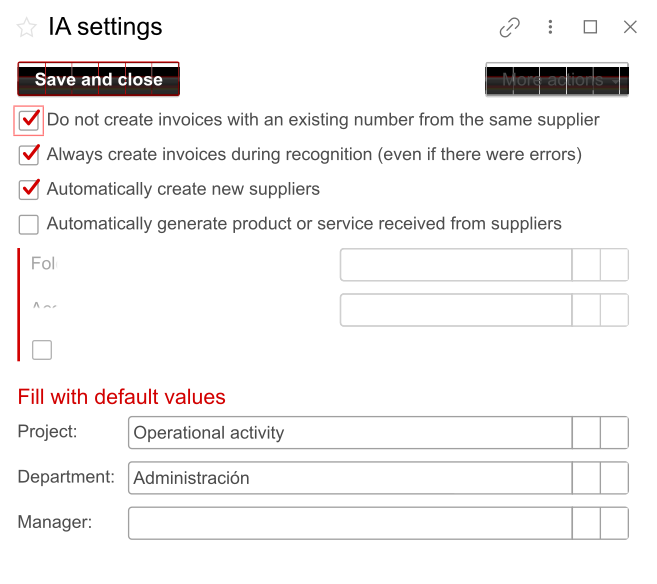
| Setting | What it does |
|---|---|
| Do not create invoices with an existing number for the same supplier | Prevents another invoice from being created with the same number for the same supplier |
| Always create invoices during recognition (even if errors occurred) | Allows a document to be created even if recognition or data matching errors occur. Missing or incorrect data must be checked and completed manually |
| Automatically create new suppliers | If a tax ID has been recognized but there is no supplier with that ID in the database, the system creates a new record |
| Automatically create goods or services received from suppliers | If no suitable item is found in the history or by name, the system creates a new record |
| Folder for new goods and services | Specifies where new records are placed. If the field is empty, the Created by AI folder is created when the first new record is added |
| Accounting Group | Used if the group proposed in the recognition result cannot be found in the database |
| Use AI to determine VAT | Allows AI results to be used when determining VAT. This is enabled automatically together with the automatic creation of goods and services |
| Project, manager, department | Default values for the documents and lines being created |
You can check and change the project, manager, and department in the Set Parameters window before uploading files.
5. How supplier, goods, and service details are filled in
Supplier
Before matching the supplier, the program removes spaces and unnecessary characters from the recognized tax ID. If the first two characters match a country code, it uses them to determine the invoice country and removes them from the tax ID.
If no supplier is found, automatic creation depends on the AI settings. Check the tax ID and other details in the new record against the original invoice.
Matching goods and services
The program first checks the history of previously processed invoices to see which record was selected most often for that supplier's product or service name. If there is no history, it searches by name.
When no suitable record is found, the program either creates a new one or leaves the field empty, depending on the setting for automatic creation of goods and services.
Combining service lines
The number of lines in the created invoice may differ from the number in the PDF. For example, detailed call records, electricity consumption, or individual maintenance operations may be combined into a single service if the lines have the same tax rates and accounting treatment.
Lines with different tax rates, accounting groups, or materially different accounting treatments are not combined. Goods that need to be tracked individually in inventory or for subsequent sale are also kept as separate lines.
Technical details, such as meter readings and consumption history, are not transferred as separate accounting items. However, additional amounts that affect the invoice value must not be lost: check delivery, fees, and other charges.
Accounting group
If AI cannot determine the group with sufficient confidence, the recognition result uses Other Services (Otros servicios) and adds a warning.
The separate Accounting Group setting serves a different purpose: the program uses it if the group in the recognition result cannot be found in the database. In both cases, check the group in the created record; assigning a value does not replace selecting the appropriate accounting treatment.
6. Recording an invoice without recognition
Manual entry is useful if no PDF is available, recognition is unavailable, or you prefer to fill in the document yourself.
6.1. Full incoming invoice form
- Open Purchases → Incoming Invoice and click Create.
- Leave the Number field empty: the system will assign an internal number automatically.
- Enter the invoice date.
- Select the supplier. If the supplier is not yet in the database, create a record and enter the country, tax ID, full company or individual name, and registered address.
- Check the tax regime and select the territory of consumption of goods and services.
- In the External Identifier field, enter the supplier's invoice number.
- On the Goods and Services tab, add the document lines. For each line, select the product or service, accounting group, and project, and enter the quantity and unit price excluding VAT.
- On the Payment Terms tab, select the payment method and payment schedule.
- Save the document and attach the original invoice on the Attachments tab.
- Click Post and Close.
Prices are entered excluding VAT and in euros, unless multicurrency accounting is used in the database.
6.2. Quick entry of an invoice from a Spanish supplier
For a simple invoice from a Spanish supplier, you can use Purchases → Service → Incoming Invoice Entry.
Enter the supplier's invoice number and date, NIF, full name, and address. Specify the product or service name in Spanish, accounting group, type, unit of measurement, VAT rate, and amount excluding VAT.
If the invoice has already been paid, select Paid and specify the payment date and bank account. The system will create the payment document automatically. If you plan to link the payment through bank integration, leave this checkbox cleared.
Click Create and Post and attach the original invoice file.
7. Accounting groups
The accounting group determines how an expense is recorded. Select the category that matches the nature of the purchase.
| Accounting group | When it is used |
|---|---|
| Rental Services and Fees | Rental of premises, equipment, and machinery, and administrative and licensing fees |
| Customs Duties | Customs fees, duties, and other import and export expenses |
| Goods | Raw materials, supplies, finished products, and goods for resale |
| Other Services | Accounting, consulting, and IT services, subscriptions, and other services that do not belong to a specific category |
| Insurance Premiums | Property, liability, health, and other insurance payments |
| Advertising and Public Relations | Marketing, public relations, social media promotion, media advertising, and sponsorship |
| Repairs and Disposal | Equipment repair and maintenance, asset disposal, and dismantling |
| Banking Services | Banking services, card payment processing, currency conversion, and other bank fees |
| Independent Professional Services | Services provided by external experts, auditors, lawyers, appraisers, and other professionals |
| Utilities | Electricity, water, heating, gas, waste collection, and similar services |
| Taxes, Fees, and Purchases on Behalf of Third Parties | Taxes and duties, and purchases made under agency agreements |
| Works and Services of Main Activity | Expenses directly related to the company's main business activity |
| Transportation Services | Logistics, freight transport, courier services, and related transportation expenses |
8. Invoice status and document management
In the Purchases → Incoming Invoice list, the standard colored indicator shows the status of the document itself:
| Document indicator | Meaning |
|---|---|
 | The invoice is saved but not posted |
| The invoice is posted, but payment has not been recorded in the program |
| The invoice is fully paid according to the program's records |
Copying. For a recurring expense, you can copy an earlier invoice. Before posting, change the date and external identifier, which is the number of the supplier's new document.
Original document. You can add a scanned copy or PDF through Attachments → Add. When you upload an invoice using AI, the original PDF is attached automatically.
Corrections. If the invoice has already been recorded in a closed period or used to prepare tax returns, agree on the correction procedure with the professional responsible for your accounting. The AI assessment does not determine how such a document should be corrected.
9. Recording the invoice and accounting for expenses
Recognition transfers data from the original document and helps identify inconsistencies. It does not replace decisions about how to account for the purchase and its taxes. Check that the invoice relates to your company and business activity; discuss any accounting uncertainties with the professional responsible for your accounting and reporting.
Expenses for which an incoming invoice is not used are covered in the next article.
10. Summary
The usual workflow is to upload the PDF, open the created invoice, read the AI messages, compare the data with the original, and complete posting. Manual and quick entry remain available when recognition cannot be used or is impractical.